
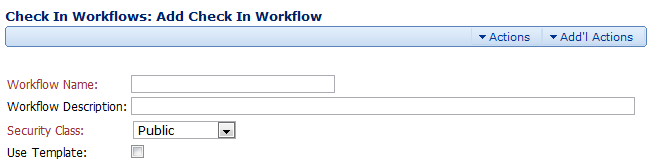
The Check In Workflows: Add Check In Workflow page allows you to create new Check In Workflows with the following options:
- Workflow Name. This is the name of the Check In Workflow. The name cannot contain spaces.
- Description. This is a description of the Check In Workflow.
- Use Template. If this item is checked, you’ll have the opportunity to select a Workflow Template from the Template drop-down menu. If this item is not checked, the drop-down menu will not appear.
- Template. This drop-down menu contains the list of all templates in the system.
If you elect to base your workflow on a template, SmartCabinet® will fill in the workflow steps automatically for you based on the template you have chosen. This can save you a lot of time.
The Actions and Add'l Actions Menu
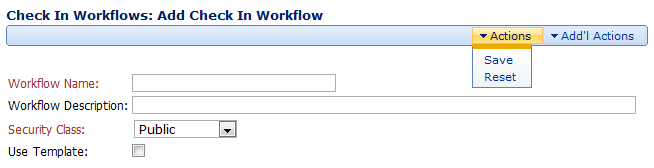
The Actions menu has the following options:
- Save. Saves the current Workflow.
- Reset. Restores the fields to their original values.
- Check In Workflows. Takes you to the Manage Workflows: Check In Workflows page where you can view the list of Check In Workflows in the system.
- Criteria Workflows. Takes you to the Criteria Workflows page where you can view the list of Criteria Workflows in the system.
Comments