
In this tutorial we’ll be making a very short workflow that covers the creation of a press release. The workflow has only three steps: (1) a writer submits a draft to an editor; (2) an editor makes necessary changes; and finally, (3) a manager reviews the document before it is sent out.
-
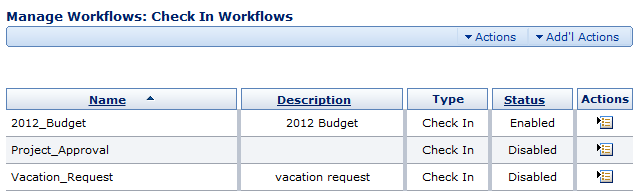
Go to the Manage Workflows: Check In Workflows page by clicking: Administration > Manage Workflows > Check In Workflows.
-
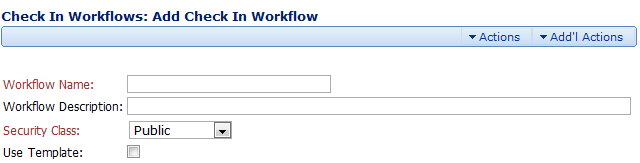
Choose Add Check In Workflow from the page Actions Menu.
-
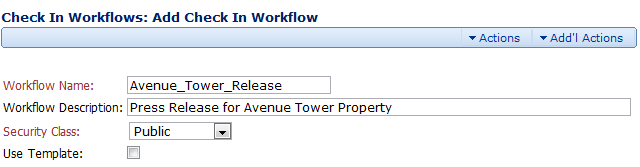
Give your workflow a name and a description.
-
Choose Save from the Actions menu. A workflow is a series of steps. At each step, someone does something to the document to bring it closer to completion.
-
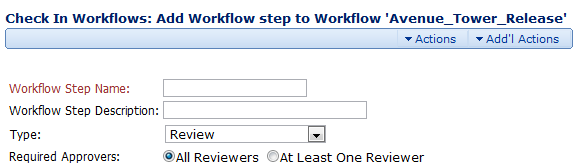
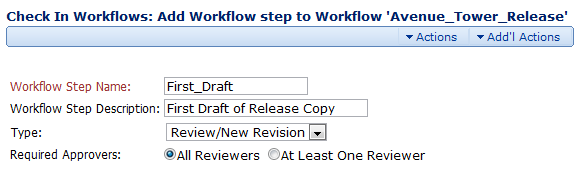
Enter a Name and a Description, and choose Review/New Revision from drop down menu. This is the first step in our workflow. Each step needs a Name, Description, and Type.
-
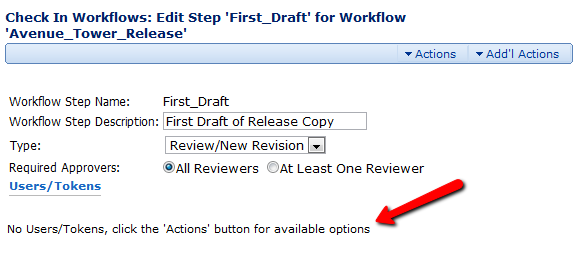
Choose Save from the Actions menu. Notice the text at the bottom telling us we don’t have anyone assigned to perform this step in the workflow.
-
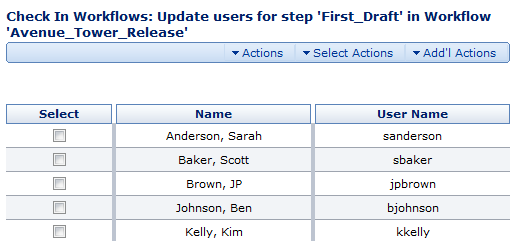
Choose Update Step Users from the Actions menu.
-
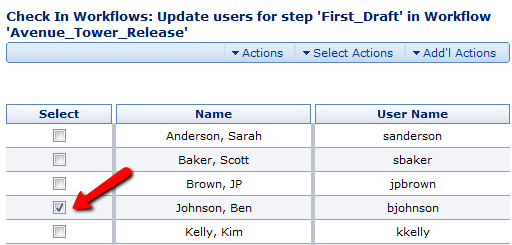
Choose Ben Johnson by clicking his Select check box. Ben is the writer on this project so he goes first.
-
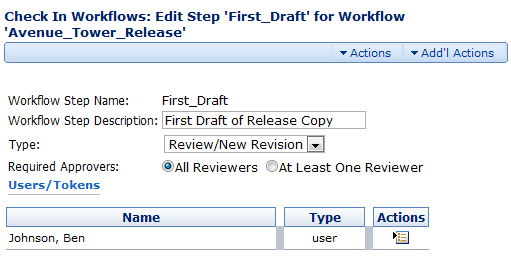
Choose Save from the Actions Menu. Notice that Ben Johnson is now listed as the person responsible for this step.
-
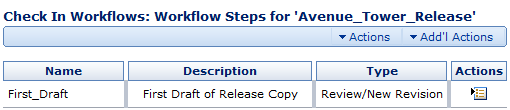
Manage Steps from the Actions Menu. You can see that the first step in our workflow has been created. Now we’ll get started on the second.
-
Choose Add Workflow Step from the Actions Menu
-
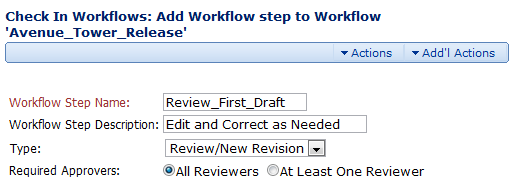
Give this step a Name, Description, and Type.
-
Choose Save from the Actions menu.
-
Choose Update Step Users from the Actions menu.
-
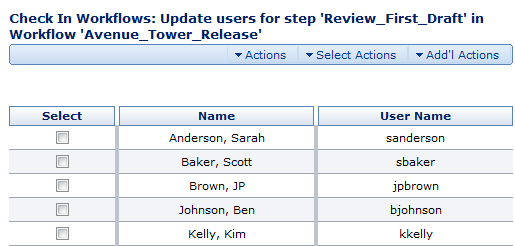
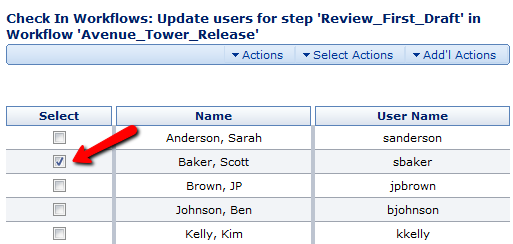
Choose Scott Baker by clicking on his Select check box.
-
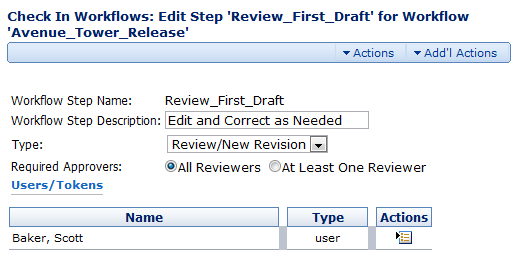
Choose Save from the Actions Menu.
-
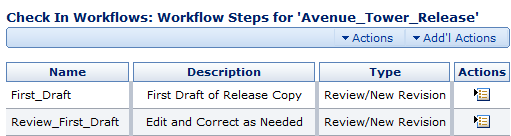
Choose Manage Steps Actions menu.
-
Choose Add Workflow Step from the Actions menu
-
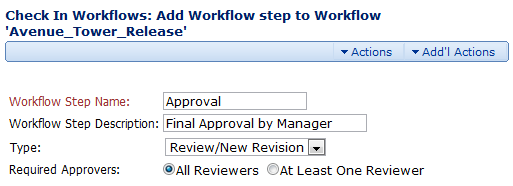
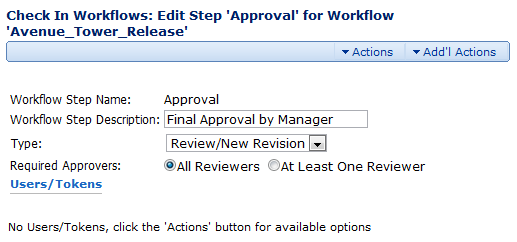
Give this step a Name, Description, and Type.
-
Choose Save from the Actions menu.
-
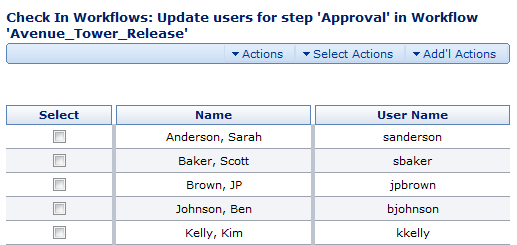
Choose Update Step Users from the Actions menu.
-
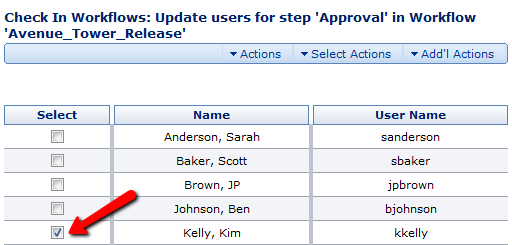
Choose Kim Kelly by clicking her Select check box.
-
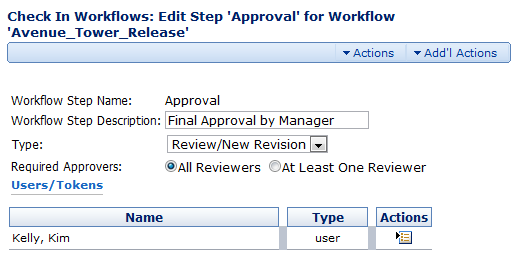
Choose Save from the Actions menu.
-
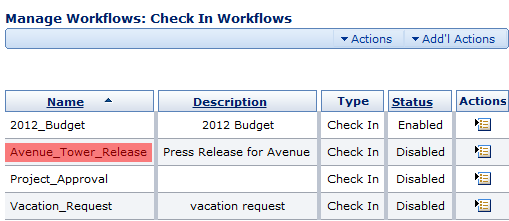
Choose Check In Workflows from the Actions Menu.
-
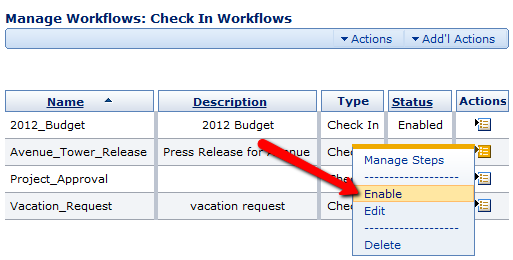
Click Enable from the Item Actions menu associated the Avenue Tower Press release. A workflow isn’t active until it’s enabled.
Comments